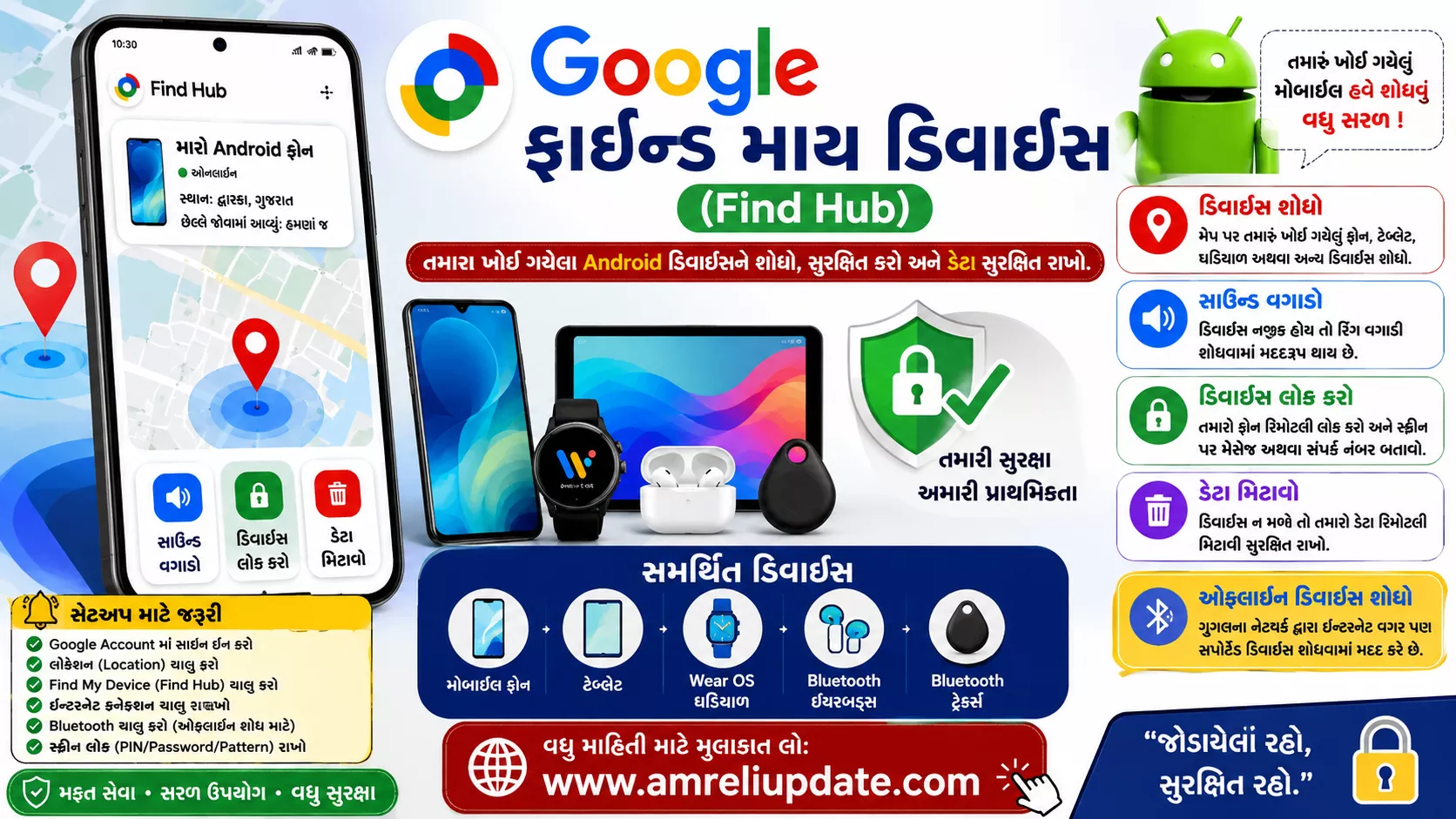
Google Find My Device, now part of Google’s Find Hub experience, is a useful security tool for Android users who have misplaced or lost a phone, tablet, smartwatch, earbuds, or another compatible device. It can help users check a device’s available location, play a sound, secure the device remotely, and erase personal data when necessary.
Losing a smartphone can be stressful, particularly when it contains personal photos, contacts, documents and other important information. Fortunately, Android users can take several steps to improve their chances of recovering a lost device and protecting their data.
In this guide, we explain what Google Find My Device/Find Hub is, its key features, how to set it up, how to find a lost Android phone, supported devices, safety tips and frequently asked questions.
What Is Google Find My Device (Find Hub)?
Google Find My Device is a Google service designed to help Android users find and protect lost devices. Depending on the device and available features, Find Hub can use location services, Bluetooth, internet connectivity and Google’s finding network to determine the approximate location of a device.
The service can be useful if you have misplaced your device at home, left it at work, or lost it while travelling.
Compatible devices and accessories may include:
- Android smartphones
- Android tablets
- Wear OS smartwatches
- Compatible wireless earbuds
- Bluetooth trackers
- Other supported Android accessories
Key Features of Google Find My Device (Find Hub)
1. Locate a Lost Android Device
One of the main features of Find Hub is the ability to view a compatible lost device on a map. Depending on its connectivity and settings, you may see its current location or a recently available location.
This can help you understand where your phone, tablet, smartwatch or supported accessory was last detected.
2. Play a Sound
If you think your phone is somewhere nearby, the Play Sound feature can help you locate it.
A compatible device can play a sound, making it easier to find when it is hidden or out of sight. This can be particularly useful at home, in an office, inside a vehicle, at school or in a hotel.
3. Secure a Lost Device
If your Android phone has been lost, Find Hub may provide options to secure it remotely.
Depending on the device and available functionality, users may be able to lock the device and display a message or contact information on the lock screen. This can allow someone who finds the phone to contact the owner without accessing personal information.
4. Erase Device Data Remotely
If you believe your lost phone cannot be recovered, remote data erasure can help protect your personal information.
Depending on the device, remotely erased information may include:
- Photos
- Videos
- Apps
- Personal files
- Other device data
However, remote erasure should be considered carefully because information removed from the device may not be recoverable unless it has already been backed up.
5. Find Supported Offline Devices
Find Hub can use Google’s finding network to help locate certain supported devices even when they are not actively connected to the internet.
Nearby compatible Android devices may help detect supported lost devices or accessories through Bluetooth-based technology. However, offline finding availability depends on the device, settings, region and supported features.
6. Find Compatible Accessories
Find Hub is not limited to smartphones. Compatible Bluetooth trackers, supported earbuds and other accessories can also be part of Google’s finding ecosystem.
This can make it easier to keep track of multiple compatible items from one place.
7. Manage Multiple Devices
If you have multiple compatible Android devices connected to your Google Account, Find Hub can help you manage supported devices through the same finding experience.
This can be useful for users who own a smartphone, tablet, smartwatch, earbuds or other compatible accessories.
8. Security and Privacy
Device-finding features involve sensitive information, so security is an important part of the service.
Access to device-management features generally requires authentication through the user’s Google Account. Users should also protect their Google Account with a strong password and two-step verification.
How to Set Up Google Find My Device
The best time to prepare Find Hub is before your phone is lost. Enabling the relevant finding and location settings can improve your chances of locating the device later.
The exact menu names may vary depending on your Android version and device manufacturer. Generally, make sure that:
- Your device is signed in to a Google Account.
- Location services are enabled.
- Find My Device or the relevant Find Hub setting is enabled.
- The device has an internet connection when online finding is required.
- Bluetooth is enabled where applicable for supported offline finding.
- A screen lock such as a PIN, password or pattern is enabled.
How to Find a Lost Android Phone
If your Android phone is missing, you can follow these general steps:
- Open Google’s Find Hub service on another device.
- Sign in using the same Google Account associated with the lost phone.
- Select the missing device from the available device list.
- Check the available location on the map.
- If the phone appears to be nearby, use Play Sound.
- If you cannot recover it immediately, use the available option to secure the device.
- If recovery seems unlikely and protecting your personal information is the priority, consider using the remote erase option.
Keep in mind that available options can vary according to the device’s status, model, Android version and connectivity.
What Do You Need to Use Find Hub?
For the best experience, a compatible Android device generally requires:
- A Google Account
- Location services
- Find My Device or Find Hub functionality enabled
- Internet connectivity for online location features
- Bluetooth for supported offline finding features
- A supported Android version or compatible device
Some features may have additional requirements.
Benefits of Google Find My Device
Google’s device-finding service offers several practical benefits for Android users:
- Helps locate misplaced devices
- Allows users to play a sound remotely
- Provides options to secure lost devices
- Can help protect personal information
- Supports compatible accessories
- Offers offline finding for supported devices
- Works across Google’s Android device ecosystem
- Helps users manage lost devices from another device
Important Safety Tips
Keep Find Hub Enabled
Make sure the relevant device-finding settings are enabled before your phone goes missing.
Use a Strong Screen Lock
Use a strong PIN, password or biometric security to help prevent unauthorized access to your device.
Protect Your Google Account
Use a strong and unique password for your Google Account and enable two-step verification whenever possible.
Keep Your Android Device Updated
Installing official Android and security updates can help keep your device protected.
Back Up Important Data
Regular backups can protect important photos, documents, contacts and other information if your device eventually needs to be erased.
Be Careful When Recovering a Lost Phone
If the location shown on the map points to an unfamiliar or potentially unsafe location, do not put yourself at risk while attempting to recover the device. Consider contacting local authorities when appropriate.
Google Find My Device vs Find Hub
Google’s device-finding experience has evolved from the traditional Find My Device service toward Find Hub, which provides a broader device and accessory finding experience.
However, users may still see the term “Find My Device” in certain Android settings or Google services. The terminology and available features can vary depending on the Android version, Google services, device manufacturer and region.
Frequently Asked Questions
Is Google Find My Device free?
Yes. The service is generally available to compatible Android users at no additional cost. However, internet or mobile data charges may apply depending on your network provider.
Can Find Hub find a phone that is offline?
Supported devices can potentially be located through Google’s offline finding network. Availability depends on the device, settings, region and other technical requirements.
Can I make my lost Android phone ring?
Yes. Compatible devices can use the Play Sound feature to help locate a nearby phone.
Can I lock my lost Android phone remotely?
Supported devices can provide options to secure a lost device remotely. The exact options depend on the device and software version.
Can I erase my lost Android phone remotely?
Yes, supported devices may provide a remote erase option. Keep in mind that remotely erasing a device may permanently remove locally stored information.
Does Find Hub work with Android tablets?
Compatible Android tablets can be supported, although available features may vary by device.
Can Find Hub locate Bluetooth trackers?
Yes. Compatible Bluetooth trackers and other supported accessories can be included in Google’s Find Hub ecosystem.
Conclusion
Google Find My Device, now part of the Find Hub experience, is an important security and device-management tool for Android users. It can help users locate compatible lost devices, play a sound, secure a device and, when necessary, erase personal data remotely.
The best way to stay prepared is to enable device-finding features before your phone is lost, use a secure screen lock, protect your Google Account, keep your Android device updated and regularly back up important data.
If your phone ever goes missing, acting quickly can make it easier to locate the device and protect your personal information.
Disclaimer
This article is provided for general informational and educational purposes. Features, availability, supported devices and functionality of Google Find My Device and Find Hub may change based on Google updates, Android versions, device manufacturers and regional availability.
Users should check Google’s official documentation and their device settings for the latest information. The source material also notes that the information may not apply identically to every device.
Google, Android, Find My Device, Find Hub and related trademarks belong to their respective owners. This article is not affiliated with, endorsed by or sponsored by Google LLC.